Last Tuesday at 9:00 PM, a small business owner in Hanover sat staring at a blinking cursor, hesitant to send out a bill for three weeks of work. She knew that according to a 2023 study by U.S. Bank, 82% of small businesses fail because of cash flow issues, yet she still wasn't sure how to create invoices in QuickBooks without making a technical mistake. You've likely felt that same knot in your stomach when trying to balance daily operations with software demands. It's stressful to worry about late payments or messy records when you just want to focus on your customers.
The good news is that you don't have to stay stuck in that cycle of anxiety. This guide will help you master professional invoicing to ensure you get paid faster while keeping your books in perfect order. You'll gain the clarity and freedom that comes with a simple billing process that represents your Hanover brand well. We're going to walk through the exact steps to set up, customize, and send your invoices so you can feel confident that your income is being tracked correctly. It's time to move toward a state of "thank heavens" clarity where your finances finally feel light.
Key Takeaways
- Experience the peace of mind that comes from replacing manual billing with a streamlined digital sanctuary for your business records.
- Follow our simple, step-by-step instructions on how to create invoices in QuickBooks to ensure your Hanover customers receive professional payment requests every time.
- Learn how to customize your billing templates with your unique logo to build lasting trust and brand recognition across York and Harrisburg.
- Navigate the complexities of Pennsylvania sales tax and avoid common invoicing errors that could disrupt your financial clarity.
- Discover how to transition from simple bill-sending to true business management, identifying exactly when your growing venture needs professional oversight.
Why Professional Invoicing Matters for Hanover Small Businesses
An invoice is much more than a simple bill. It functions as a professional request for payment and serves as a vital legal financial record for your company. When you transition from manual, paper-based systems to a digital workflow, you create a sanctuary of organization within your back office. For local service providers in Hanover, the quality of your billing reflects the quality of your craft. Professionalism builds trust, and trust ensures your clients return season after season.
The ultimate goal for every entrepreneur in York County is financial clarity. You deserve to know exactly where your money is at any given moment. Understanding how to create invoices in QuickBooks allows you to move away from the chaos of missing receipts and unrecorded sales. It transforms your billing process into a predictable, calming routine that supports your long-term growth and peace of mind.
The Benefits of Using QuickBooks Online for Billing
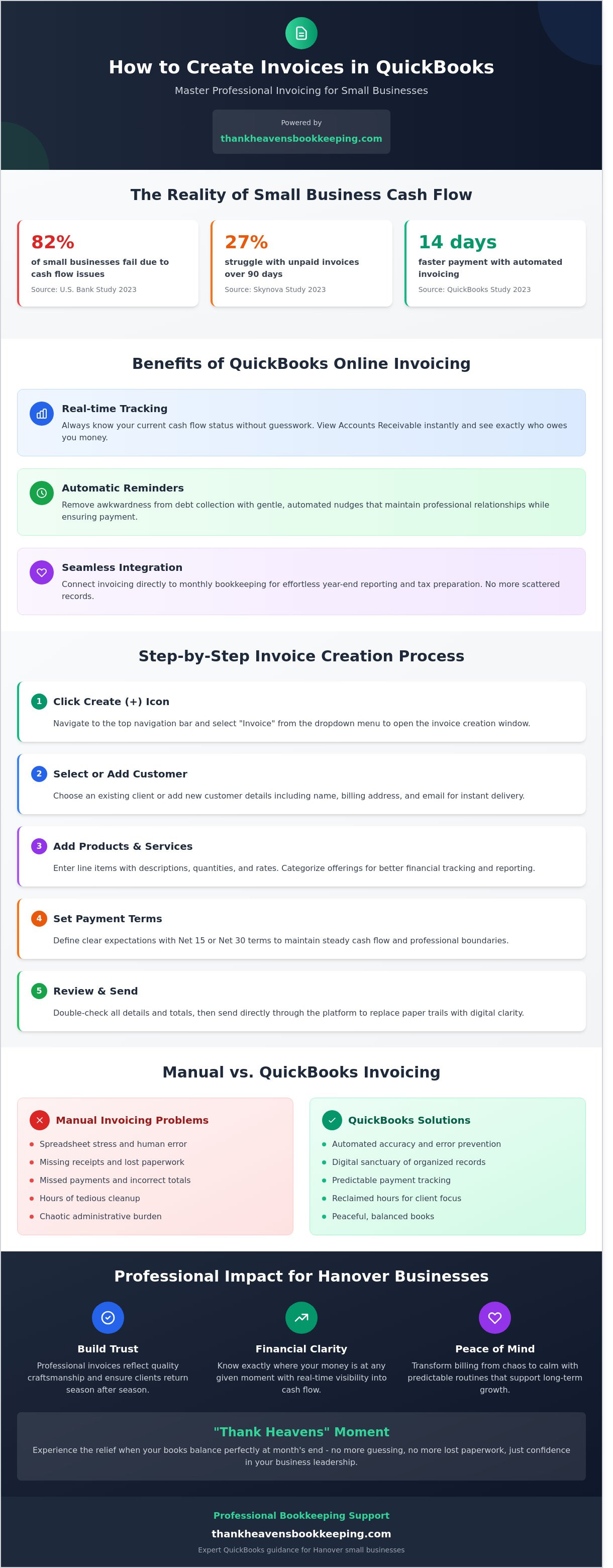
Using a dedicated platform for your billing offers immediate relief from the mental load of tracking debt. You can view your Accounts Receivable in real-time, seeing exactly who owes you money without digging through folders. According to a 2023 Skynova study, 27% of small businesses struggle with invoices that remain unpaid for over 90 days. QuickBooks helps you avoid this by using automatic reminders.
- Real-time tracking: You'll always know your current cash flow status without the guesswork.
- Automatic reminders: These tools take the awkwardness out of debt collection by gently nudging clients for you.
- Seamless integration: Your invoicing connects directly to your monthly bookkeeping, making year-end reporting and tax preparation a breeze.
QuickBooks vs. Manual Invoicing: A Relief Analysis
Manual invoicing often leads to spreadsheet stress, a common burden for business owners in the Hanover and Harrisburg areas. A study by US Bank found that 82% of small businesses fail due to poor cash flow management. Manual systems are prone to human error; they lead to missed payments or incorrect totals. By automating these workflows, you reclaim hours of your week to focus on serving your clients.
The "Thank Heavens" moment happens when your books balance perfectly at the end of the month. You no longer have to guess if a client paid or worry about lost paperwork. Knowing how to create invoices in QuickBooks gives you the confidence to lead your business with a sense of freedom. It turns a daunting administrative task into a steady, predictable rhythm that honors your hard work and protects your time.
Step-by-Step: How to Create an Invoice in QuickBooks Online
Learning
how to create invoices in quickbooks is a simple way to bring immediate order to your financial life. You begin by clicking the "Create" (+) icon located in the top navigation bar. Select "Invoice" from the dropdown list. This action opens a window where you'll enter the details of your hard work. You can choose an existing client or add a new one by entering their name and Hanover-specific billing address. Don't forget to include their email address so the system can deliver the document instantly. This streamlines your day.
Next, you'll define your payment expectations. Setting clear terms like Net 15 or Net 30 helps you maintain a steady cash flow and sets professional boundaries. According to a 2023 QuickBooks user study, businesses that utilize automated invoicing features get paid an average of 14 days faster than those relying on manual entry. Once you've reviewed the totals, you can send the invoice directly through the platform. This process replaces the chaos of paper trails with digital clarity. It's a moment of relief for any busy owner.
Setting Up Your Customer List Correctly
Accuracy serves as the foundation for your peace of mind. When you manage clients across Westminster and Philadelphia, small details in contact information matter. Use the "Customer Notes" field to document specific project preferences or delivery instructions. This level of detail allows you to provide a personalized service that builds long-term trust. A clean customer list prevents reconciliation errors that often lead to hours of tedious cleanup later. If you're feeling stuck, reaching out to a bookkeeper in Hanover, Pennsylvania can provide the professional support you need.
Adding Products and Services
Categorizing your offerings allows you to see exactly where your revenue originates. When you organize your products correctly, you gain the freedom to focus on your most profitable tasks. This is especially important for service-based businesses where time is your most valuable asset. Specific descriptions are necessary to avoid client confusion and payment delays. A 2023 industry survey revealed that 27% of unpaid invoices are the result of vague line items. By being precise, you give your clients the confidence to pay you promptly and without hesitation. Clarity is a gift to both you and your customer.
Customizing Your Invoices to Reflect Your Professional Brand
Your invoice is often the final touchpoint a client has with your business. It should feel like a natural continuation of the excellent service you provide in Hanover. To begin this transformation, click the gear icon and select "Custom Form Styles." This menu is your gateway to turning a generic document into a professional reflection of your hard work. When you master
how to create invoices in quickbooks, you're doing more than just requesting payment; you're reinforcing the trust you've built with every interaction.
Uploading your business logo is the fastest way to build credibility with your customers in York and Harrisburg. A 2023 study by the Journal of Business Research found that consistent visual branding can increase revenue by 23 percent. Beyond the logo, adjust your colors and fonts to match your local brand identity. If your brand uses a specific shade of navy or a clean sans-serif font, ensure those details carry over. This consistency provides a sense of relief to your clients, as they'll instantly recognize the document as yours. Use the footer section to craft a personalized "Thank You" message. Instead of a standard "Payment due in 30 days," try a message that reflects your warm personality, such as "We truly appreciate your partnership and love seeing your business thrive."
Choosing the Right Template
QuickBooks Online offers "Standard" and "Modern" templates to suit different needs. For many service-based businesses, the "Modern" layout provides a cleaner look that emphasizes your specific service descriptions rather than just quantities. While the "Standard" template is reliable for high-volume product sales, the "Modern" style feels more personal. To keep your logo looking crisp on printed PDFs, upload a high-resolution .png or .jpg file. This prevents the blurry or pixelated look that can happen with lower-quality files, ensuring you look like the meticulous professional you are.
Personalizing Your Email Messages
The way your invoice arrives in an inbox matters just as much as the document itself. A busy Hanover business owner might receive 120 emails a day, so your subject line needs to be clear and helpful. Use placeholders like [Invoice No.] and [Company Name] so your client knows exactly what they're looking at before they even click. This small step provides immediate clarity and reduces the friction of getting paid. Learning
how to create invoices in quickbooks
allows you to automate these details while maintaining a tone of professional warmth. Start your email with a friendly greeting to show you're an organized advocate for their success, not just a bill collector. Partnering with a bookkeeper in Hanover, Pennsylvania can help you refine these settings to ensure your financial communications always feel supportive and clear.
Common Invoicing Mistakes and Pennsylvania Tax Considerations
It is normal to feel a bit of anxiety when you click "Send" on a new bill. You want to look professional, and you certainly don't want to overcharge your neighbors here in Hanover. Understanding how to create invoices in QuickBooks correctly helps you avoid the common pitfalls that keep business owners awake at night. Most errors happen because of a simple lack of workflow, not a lack of effort.
Navigating PA Sales Tax in QuickBooks
Pennsylvania tax law is nuanced. While the base state sales tax is 6%, not every service is exempt. According to the PA Department of Revenue, services like lawn care, disinfecting, or building maintenance are taxable. QuickBooks simplifies this by using "Automated Sales Tax" based on the delivery address of your customer. This feature takes the guesswork out of your hands. However, tax laws change. Consulting a bookkeeper in Hanover, Pennsylvania ensures your settings align with current state mandates so you never have to worry about an unexpected bill from the state.
Avoiding the Cleanup Trap
Many Hanover entrepreneurs find themselves stuck in the "Cleanup Trap." This is a preventable cycle of financial confusion where small, daily errors force you to spend hours fixing your books at year-end. One major cause is failing to match payments correctly. When a check arrives, don't just "deposit" it into your bank account within the software. You must apply it to the specific invoice you created. If you don't, QuickBooks will show the invoice as unpaid and the deposit as separate income. This mistake makes it look like you earned twice as much as you actually did, leading to an inflated tax bill.
- Never delete a sent invoice: If you made a mistake, use the "Void" function instead. This keeps your invoice numbering sequence intact and preserves the audit trail.
- Watch for duplicates: If you accidentally send two invoices for the same job, your accounts receivable will look much higher than it really is.
- Match bank feeds daily: Ensure every deposit is linked to an existing invoice to maintain accurate cash flow reports.
Learning how to create invoices in QuickBooks is about more than just getting paid. It's about building a reliable history of your hard work. When you handle these details with care, you replace financial stress with a sense of calm and control. If you're feeling overwhelmed by the technical details of your accounts receivable, we can help you find your footing. Explore our bookkeeping services to see how we bring clarity and freedom to your business finances.
Beyond the Invoice: Achieving Total Financial Clarity
You’ve successfully learned how to create invoices in quickbooks. That is a significant milestone for your Hanover business. However, there is a distinct line between simply sending bills and truly managing a thriving enterprise. While the software makes the process smoother, the data those invoices generate is where your real power lies. According to data from the U.S. Small Business Administration, 82% of small businesses fail because of cash flow mismanagement. Understanding your numbers is the difference between surviving and flourishing in a competitive market.
Learning how to create invoices in quickbooks is a practical skill, but interpreting the resulting reports is a strategic advantage. When you move beyond the transaction, you begin to see the story of your business. You identify which services are most profitable and which clients consistently pay late. This clarity allows you to stop reacting to bank balances and start planning for future growth with a sense of calm confidence.
When to Hire a Professional Bookkeeper
If you find that your weekly invoicing has transformed into a stressful second job, it's time to pause. Many local business owners spend upwards of 15 hours a month on manual data entry and bank reconciliations. This is time you could spend serving your Hanover customers or developing new products. A certified ProAdvisor does more than just fix errors; they provide a sanctuary of organization. They help you interpret the data your invoices create, turning a list of transactions into a roadmap for success. You can explore the Top Benefits of QuickBooks Online for Hanover Businesses to see how professional oversight maximizes your software investment.
Your Next Steps Toward Sanctuary
Achieving financial peace starts with a consistent routine. Before you send your next professional invoice, use this final checklist to ensure everything is perfect:
- Verify Customer Details: Ensure the billing address and email are current to avoid delivery delays.
- Confirm Tax Settings: Check that your Pennsylvania sales tax is calculating correctly based on the service location.
- Review Payment Terms: Set clear expectations, such as "Due on Receipt" or "Net 15," to maintain steady cash flow.
- Attach Necessary Documentation: Include any project notes or receipts that help the client approve the payment faster.
Once these steps become part of your rhythm, the weight on your shoulders begins to lift. There is a profound emotional benefit to knowing your books are "Thank Heavens" organized. You no longer have to guess if you can afford that new equipment or if you can take a well-deserved weekend off. You have the data to back your dreams. If you are ready to stop stressing and start growing, we are here to lead the way. Let’s get your books cleaned up and organized.
Take Control of Your Hanover Business Finances Today
Mastering
how to create invoices in QuickBooks is more than just a clerical task; it's the heartbeat of your daily cash flow. By following the specific steps to set up your templates and accounting for Pennsylvania's 6% sales tax, you're protecting your hard work and ensuring your York County business stays compliant. You've now seen how professional customization builds trust with your local clients while organized records prepare you for every tax season. These small, consistent actions transform your back office from a source of stress into a foundation for growth.
You don't have to carry the weight of your books alone. As a Certified QuickBooks Online ProAdvisor specializing in Hanover and York small businesses, I provide the expert hand you need to find true financial peace. My approach is rooted in empathy and relief, designed to move you away from overwhelm and toward total clarity. Let's work together to make sure your numbers reflect the success you've built. You deserve to feel light, organized, and confident in your business's future.
Get the Clarity You Deserve – Explore Our Hanover Bookkeeping Services
Frequently Asked Questions
How do I send an invoice automatically every month in QuickBooks?
You can automate your monthly billing by using the "Recurring Transactions" feature located under the Settings gear icon. Once you select "Invoice" as your template type, you can set the schedule to "Monthly" and choose the specific day of the month for it to send. Learning
how to create invoices in QuickBooks that send automatically gives you back roughly 20 minutes of administrative time for every client you automate. It ensures your cash flow remains steady without you having to remember every single deadline.
Can I accept credit card payments directly through my QuickBooks invoices?
You can accept credit card payments directly through your invoices by enabling QuickBooks Payments in your Account Settings. This feature allows your customers to click a "Pay Now" button and enter their details securely. A 2023 study by Intuit found that small businesses offering online payment options receive their funds 2 times faster than those relying on traditional checks. It’s a wonderful way to provide convenience for your clients while bringing immediate clarity to your bank balance.
What is the difference between a Sales Receipt and an Invoice?
The primary difference is the timing of the payment relative to the service provided. You should use an invoice when a customer will pay you at a future date, such as with "Net 15" or "Net 30" terms. Conversely, a sales receipt is for transactions where the customer pays you immediately at the point of sale. Understanding
how to create invoices in QuickBooks for your deferred payments ensures your Accounts Receivable accurately reflects the money you are still owed.
How do I track if a customer has opened the invoice email I sent?
You can track email interactions by viewing the "Status" column in your Invoices list or by opening a specific invoice to see the "Audit History" link. QuickBooks automatically tracks when an email was sent, viewed, and paid. This feature provides 100% visibility into the communication chain, so you don't have to wonder if a Hanover client received your bill. It brings a sense of peace to your follow-up process because you have the data right in front of you.
What should I do if a Hanover client pays me in cash instead of online?
When a local Hanover client pays in cash, you must record the transaction using the "Receive Payment" button to close out the open invoice. You should select "Undeposited Funds" as the "Deposit to" account so your records match your actual bank deposit later. This practice prevents your 1099 reporting from being inflated by 1 or 2 accidental double-entries. It keeps your books organized and ensures your year-end tax preparation is a breeze rather than a burden.
How can I delete an invoice in QuickBooks if I made a major mistake?
You can remove an error by selecting "Void" or "Delete" from the "More" menu located at the bottom of the invoice screen. While both options remove the balance, choosing "Void" is usually better because it keeps a record of the transaction history with a zero value. This preserves your audit trail, which is helpful if you need to reference the mistake 3 years from now during a review. It's a quick way to fix a slip-up and restore your confidence in your financial data.